Showing posts with label GUI. Show all posts

Thursday, February 20, 2020

SAP UI themes

Over the years SAP came with many themes for their UI technologies like SAP GUI, Web Dynpro for ABAP/Java, ITS (SAP GUI for HTML), BSP, HTMLb, BI, JSF, NetWeaver Business Client, Enterprise Portal, SAP UI5, SAP CRM UI and etc. In this blog post, I mention few of major ones.

First, there are two main categories of the SAP UI themes based on Unified Rendering (UR):

·        UR Classic = Unified Rendering Classic or UR 1.0
·        LS = Unified Rendering Lightspeed or UR 2.0

In general the UR is a SAP proprietary HTML rendering and JavaScript library for SAP UI technologies.

Frameworks (UI technologies) that use UR Classic are (at this point of time):
·        Web Dynpro ABAP (WDA-UR): SAP NetWeaver 7.00, SAP NetWeaver 7.10 
·        Web Dynpro Java (WDA-UR):  all SAP Netwaever releases out of maintenance ( <= SAP NetWeaver 7 EhP2 (7.02) )
·        Business Server Pages (BSP)
·        HTMLB for Java
·        SAP BEx Web Analyzer (Business Intelligence - BI)

Frameworks (UI technologies) that use UR are (at this point of time):
·        Web Dynpro ABAP (WDA-LS): >= SAP NetWeaver 7 EhP1, >= SAP NetWeaver 7.11
·        Web Dynpro Java (WDJ-LS): >= SAP NetWeaver 7.10)
·        SAPGUI for HTML (HTMLGUI-LS): ABAP kernel integrated ITS
·        Lightspeed Server Faces (LSF)

SAP GUI themes:
SAP Belize Theme – started in 2016, adopted Fiori 2 theme for classic applications
SAP Blue Crystal Theme – started in 2013 came with a new color scheme (blue and white), revised UI elements, revised SAP GUI icons, it was inspired by the Blue Crystal Design in SAP Fiori.
Corbu Theme – started in 2012 came with reduced contrast and revised SAP GUI icons
SAP Signature Theme – started in 2008 as of SAP GUI 7.4, the theme was offered for all SAP UI technologies in order to ensures the harmonization of different UIs
System Dependent Theme – inherits theme from SAP backend system
Tradeshow Theme – refined Streamline Theme
Streamline Theme – introduced first for SAP Enterprise Portal product
Enjoy Theme – started in 1999 as of SAP GUI 4.6
Classic Theme – started in 1999, OS Windows theme up to Windows 2000
For details see also post called: SAP GUI visual designs.

Fiori 3 themes:
SAP Quartz (Light/Dark)

Fiori 2 themes:
SAP Belize (Deep/Contrast White/Contrast Black)

Fiori 1 themes:
SAP Blue Crystal

SAP NetWeaver 7 EhP2 themes:
SAP Corbu
SAP Gold Reflection - alias for SAP Corbu theme

Custom themes can be created with SAP UI Theme Designer and  Portal Theme Editor:
SAP Tradeshow
SAP Tradeshow Plus - also known as SAP Signature Design


More information:
710719 - SAP GUI family and visual designs ("themes")
2000110 - Unified Rendering
2124106 - Themes for Unified Rendering based UI technologies (Web Dynpro ABAP/Java, BSP, SAP GUI for HTML, BI, JSF)

Saturday, February 6, 2016

Active Component Framework

A SAP component which is responsible for integration of active components in web based user interfaces of SAP is called Active Component Framework (ACF). It enables usage of technologies like Adobe Forms or MS Office components in SAP technology like WebDynpro.

Implementation of the ACF contains ActiveX controls, JavaBeans, and applets that run in Web browsers or in SAP NetWeaver Business Client (NWBC). What the ACF does is to provide services to process mass data while fetching the data from the backend and reset modified data state), displaying data in-place or outside a browser or the NWBC, integrating components in the Web Dynpro programming model (data binding, event handling), keeping the status of a component when a new page is loaded.

Web Dynpro ABAP (WD4A) provides the following ACF based UI elements for developers of user interfaces: Gantt, Network, OfficeControl, InteractiveForm, AcfExecute, AcfUpDownload, FlashIsland, SilverlightIsland and ActiveX.

Technically the AFC is installed with SAP GUI. However it can be also download from SAP SMP via support.sap.com/patches -> "Browse our Download Catalog" -> "SAP Technology Components" -> "ACF" -> Download the latest available ACF patch. Also see following SAP Notes for the same.

766191 - Installation of Active Component Framework
891202 - Installing Active Component Framework for NW04S SP04

In closing words I need to say that as whole software world is moving to light wave option of HTML5 based UIs also SAP is shifting away from UIs based on such an active components. SAP is heavily investing in their Fiori based UI.

Useful links:
846952 - Erase ACF from client PC

1150277 - Prerequisites for using ACF

Tuesday, July 21, 2015

Running webdynpro in SAP GUI

Even it is not very usual there is a possibility to run webdynpro application in SAP GUI. Or we can say to trigger webdynpro app in SAP GUI. There is a t-code WDYID - Display Web Dynpro Application which by help of ABAP function group SAPLWDY_PRGN_NODES (screen no 400) runs it. On its selection screen we can enter particular WD app into field "Applicatn" and then simply by hitting Enter key it runs. User is not prompted to login to the application. This is being because SAP GUI will generate a SSO ticket off of the user current SAPGUI login.


There is also possibility to create custom transaction codes to enable running webdynpros in SAP GUI. As per online documentation it should be type of "Transaction with parameters (parameter transaction)" and should point to t-code WDYID and should have screen = 0. Finally you need to specify two default values for new t-code with following names:

STARTMODE = GUI
APPLICATION= your_wd_app_name


Tuesday, April 28, 2015

Few notes on SAP Screen Personas 3.0

I introduced SAP Screen Personal some time ago here. The Personas is powerful framework to simplify and beautify SAP user interface in particular its screens and transactions. Meanwhile (mid of 2014) the Personas evolved with version 3.0 which bring s lot of new features.
Most important to me is that it doesn’t leverage Microsoft Silverlight anymore for rendering. The Personas 3.0 is integrated fully into HTML as it is part of the SAP GUI for HTML. One down side is here though. Due to technology change a migration of flavors between Personas 2.0 and 3.0 is required. Also the Personas 3.0 is still not officially supported on mobile devices. It is considered as desktop technology. But there are discussions on SCN saying that at least on android based devices it works quite well.

Also scripting in the Personas is very advanced. It includes now more JavaScript language constructions like nested IF conditions and looping.

While using calls to remote enables Function Modules do not forget to perform whitelisting of such a FM. It involves entering the FM into table /PERSONAS/C_RFCW. Whole procedure is very easy and is described here.


Following are few remarks on famous P icon or button of SAP Personas:


Blue bar on top of the page in WebGUI:


or an P icon/button in WebGUI:


or an P icon/button in SAP GUI:


All these indicate that Personas are actually installed in particular SAP system.

Tuesday, June 17, 2014

Upload/download of file from/to SAP Application Server and Frontend

There is many times necessity of upload/download data between use’s frontend and SAP’s application server. If it is a high volume of files usually we use FTP tool. However from end user perspective if it is a case of few files there are other ways of how to do it.

We can create simple ABAP programs for the users. In such a program a Function Modules like GUI_DOWNLOAD and GUI_UPLOAD. 

Also we can reuse ABAP classes like CL_GUI_FRONTEND_SERVICES with its methods: GUI_DOWNLOAD   and GUI_UPLOAD.

However much easier method is to use standard transaction codes:


CG3Y - copying from app server to frontend


CG3Z - copying from frontend to app server


Monday, September 30, 2013

SAP Screen Personas

SAP came few times with initiatives how to simplify and even reduce number of SAP screens and fields on the screens. There are options within different SAP products e.g. in customizing where particular screens/fields can be hidden if not used for that customer or SAP implementation. These initiatives are really important. SAP software is covering a lot of industry solutions basically we would hardly found some major industry which is not covered by SAP. Therefore all the screens are really very advanced supporting needs of different industries. Downside is that such as screens/fields are heavy containing a lot of features tied to wide functionalities.

Other initiative was GuiXT. Provided by 3rd party company (Synactive) it is a way how to  customize SAP GUI user interface enabling to narrow down no of screens/fields without touching coding (e.g. ABAP or dynpros). More details about GuiXT see here.

In 2012 SAP came with another possibility. It is called SAP Screen Personas. Basically it is aiming same goal. In contrast of GuiXt it is browser based tool for personalizing SAP Dynpro screens. Notice that Personas works on most of dynpro screen. However it doesn’t work on webdynpros based apps (e.g. app like SAP CRM web client or SAP SRM). It can run as far as you accessing SAP backend system via web browser. It is compatible with SAP NetWeaver Business Client (NWBC) as well as with old ITS. Personas are supported by Microsoft Silverlight (app framework for writing and running rich Internet applications; similar Adobe Flash) and HTML. Personas are part of SAP’s User Experience strategy – they enable improving of SAP screens. In lights of other new SAP initiative like SAP Fiori (which aims to renew widely used SAP user scenario) and SAP UI5 (UI to create new SAP apps) Personas are complementary. Again no programming is involved in Personas deployment.

Screen Personas are delivered as SAP NetWeaver software Component called PERSOS; means it is add-on which needs to be installed into your NetWeaver backend system. NW kernel 7.21 is required. You can customize SAP Personas via TA SPRO -> SAP Customizing Implementation Guide -> Cross Application Components -> SAP Screen Personas.

SAP Screen Personas, version history:
2013 July: Personas 2.0 and Personas 1.0 SP2
2013 April: Personas 1.0 Service Pack 1 (SP1)
2012 December: SAP Screen Personas 1.0

Coming back to GuiXT: As per note 1825312 (Maintenance strategy of GuiXT) GuiXT is still supported and there are currently no plans to remove it from SAP GUI installation.

SAP Personas Resources:
1826286 - FAQ/How-To Guide for SAP Screen Personas
1884539 - Considerations when using SAP Screen Personas
1776739 - Release strategy for the ABAP add-on PERSOS

Monday, April 29, 2013

Browser's support by SAP

As BW consultant you may wonder sometimes what web browser are supported in BW/BI area. As web access is used also in other SAP solutions we can extent the topic of browser support to functionalities witch utilize different User Interface (UI) technologies. Over the time SAP has developed a many of UI technologies. Just to mention a few:

·         Web Dynpro ABAP (BC-WD-ABA)
·         Web Dynpro Java (BC-WD-JAV)
·         SAP GUI for HTML (integrated ITS)
·         NetWeaver Business Client (NWBC) for HTML
·         Enterprise Portal End Users (Portal rendering and HTMLB for Java) or SAP NetWeaver Portal
·         Portal Administrator
·         BSP (Business Server Pages, incl. HTMLB for ABAP Design 2003 and 2008), BSP Extensions
·         SAP Interactive Forms by Adobe (SAP IFbA)
·         BI (BEx Web and BI Java)
·         Visual Composer Runtime (Desktop/Mobile)
·         Visual Composer Designtime
·         SAPUI5 , SAPUI Services
·         ICF System logon (BC-MID-ICF-LGN)

There are a tons of functionalities spread across different SAP solution which are even completely designed to be accessed via web. Therefore the browser support is very important.
In general currently SAP supports following browsers, always see particular SAP Note with the latest information about the browser. 

1/ Internet Explorer
1672817 - Internet Explorer for end users and administrators
1599159 – IE9 Release Note for Administrators
1583947 – Internet Explorer 9 (IE9) Release Notes

2/ Mozilla Firefox
990034 - Firefox browser for end users and administrators

3/ Apple Safari
1634749 - Safari browser for end user and administrators
1446519 – Safari Restrictions for Unified Rendering and ACF

4/ Google Chrome
1655306 - Google Chrome for end users and administrators


Opera – is not currently supported by SAP applications. Only way how Opera is supported is that you can use it to browser SAP’s Service Marketplace (SMP). 

Detailed information about supported web browser (browser running on operating system versions) is available in the Product Availibility Matrix (PAM) on SAP’s Service Marketplace (SMP). Apart of PAM also check following main SAP Notes related to browsers:

1728946 - Central Browser Note for NetWeaver
1566444 - Main Browser Note for BS7i2010
1574357 - Main Browser Note for BS7i2011
1296419 - Main Browser Note for NW 2004
1296463 - Main Browser Note for NW 7.0
1296464 - Main Browser Note for NW 7.1
1509421 - Main Browser Note for NW 7.3
1793938 - Main Browser Note for NetWeaver 7.4
1403485 - Browser Support: Windows 7

More important SAP Notes for SAP BW:
1029680 - BEx Web applications Java: Limitations for Firefox
494689 - Web Browser compatibility of BW 3.0A and higher
321973 - Recommendations for the BW front end
338532 - BW 2.0B and 2.1C Web browser compatibility

More important SAP Notes per UI technology:
598860 - Browsers supported by BSP
1705067 - Known issues for Portal on Device
1716423 - SAPUI5 Browser Support for Mobile and Desktop Applications

Monday, July 23, 2012

Not very known transaction codes for lists

There are few transaction codes not very known for processing of list outputs. Actually they are not real transaction codes but are user interface codes (sy-ucomm) instead.

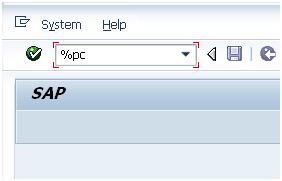
First one is very helpful while you are in screen’s output where no standard System menu is available. If this menu is in place you have a choice to go via System->List->Save->Local file. In case when this System menu is not available you can simple enter %PC into transaction code field:


Afterwards you get pop-up where you can enter format of the file into which you want to save this particular output. So to sum it up you can you %PC to same any lists as local file.


Furthermore lists can be searched with another transaction field code %SC:


Again it is very helpful in case no standard icon of binocular is available in the toolbar of SAP GUI menu. Also continued search with can be achieved by transaction field code %SC+.


Few more command fields related to handling of SAP GUI sessions:

·        /n<t-code> terminates current transaction and calls other transaction indentified by its t-code


·        /o<t-code> opens a new session and starts transaction t-code in this session


·        /n                terminates the transaction


·        /nend          terminates all separate sessions and logs off (same as via menu "System -> Log off")


·        /nex            terminates all separate sessions and logs off immediately (without any warning)


·        /o0              opens a new session without starting a transaction in it


·        /o                lists existing sessions and allows deletion or opening of a new session


·        /i                 terminates current session (same as via menu "System -> End session")


·        /i1 , /i2 ,...   terminates the session with the specified number


·        .xyzw           to support menu navigation so called "Fast path", in situations in which it is not possible to navigate via mouse (faulty mouse device), where "xyzw" refers to the underlined letters in the menu


More command fields related batch input processing:

·        /n      terminates current background input t-code and closes it as "Failed"


·        /bdel deletes the current background input transaction


·        /bend terminates background input processing and sets the session to "Failed"


·        /bda  switches from "Display errors only" to "Process in foreground"


·        /bde  switches from "Process in foreground" to "Display errors only"


More information:

Resetting buffers: t-codes /$*

Starting up ABAP debugger

26171 - Possible entries in the command field ("OK code")


Tuesday, November 15, 2011

SAP GUI installation and its troubleshooting

I had to reinstall my SAP GUI recently and during this process I encounter few issues. Within this post I want to share GUI installation troubleshooting hints. My version was SAP GUI 7.2 Compilation no. 3.

Notice that installation of GUI requires administration right on user performing installation itself. This is must w/o it installation will abort.
From disk size point of view you need at least 1,5GB left on hard drive where software will be installed.

One of prerequisites is to install Microsoft .Net framework 2.0 prior GUI installation. Basically .Net is prerequisite for:

·         BEx tools – BEx Query Designer, BEx Query Analyzer, Web Application Designer, etc.
·         web browser – Internet Explorer as of version 7.x which is a prerequisite for GUI

Also you will be required to install Microsoft .NET Framework 2.0 Service Pack 1. For BW 7.x frontend tools you will need 3.5 framework or 4.0 framework.
First error I got during installation was following:
SAP frontend software installation has encountered a problem and needs to close. We are sorry for the inconvenience.


Issue was that I had wrong version of JAVA runtime (JRE (Java Runtime Environment)). So in this case rely on version of JAVA as it is advised by SAP GUI installation program. You can download JAVA from still valid address: java.sun.com or from new ORACLE site: oracle.com/technetwork/java/javase/downloads/index.html -> JRE

From now on you are guided through installation via standard installation windows e.g. asking for target folder, selection of GUI’s components etc.

After the installation is done you can get you evaluate it. You can start check of installation via /check switch of installation *.exe file: e.g. setupall.exe /check


You have possibility to run check from SAP Logon Pad as well. While you running it pick up left corner and choose Options->System Information->Check SAP GUI instillations:


Especially BEx’s tools are having another check tool possibility. It is add-in to MS Excel and you can navigate to it via X:\Program Files\Common Files\SAP Shared\BW\SAPBExCheck.xla

References:
·         SDN’s SAP GUI homepage
·         http://forums.sdn.sap.com/forum.jspa?forumID=117 - SDN’s SAP GUI forum

More on SAP GUI topic:
·         SAP GUI visual designs
·         When your SAP GUI will die?
·         Color of SAP GUI windows
·         Short history of SAP GUI